Start with the host and the operator task
A compact terminal may be used for a staff-facing control screen, a retail interaction point or a dedicated application. In each case, identify the task the operator must complete and the device that will run the software. This product is described as a touch monitor; do not assume that it includes the computer, operating-system license or application required for the complete terminal.
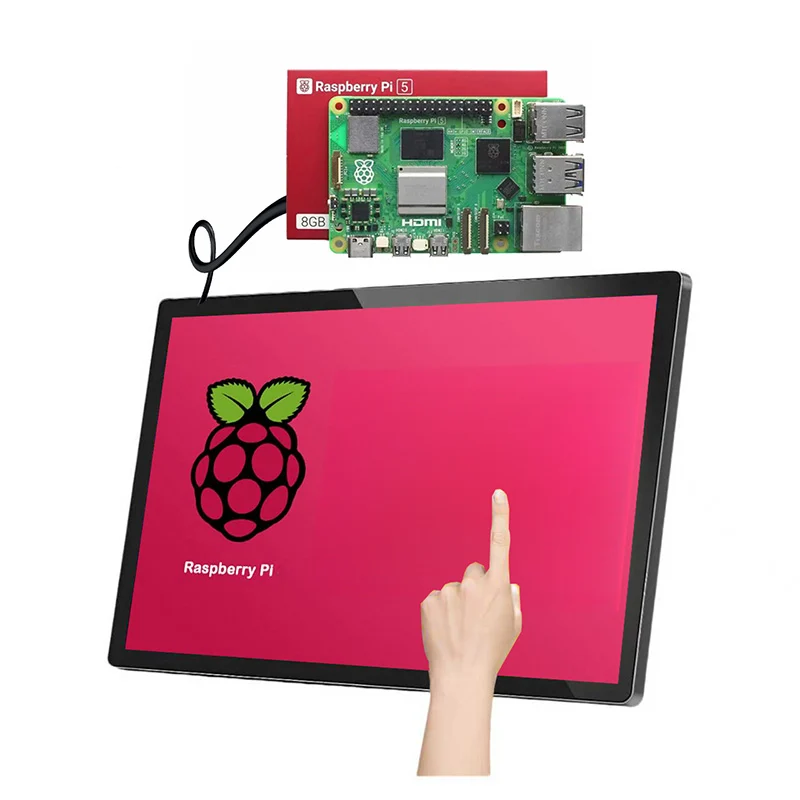
List the host model, software version and video output before comparing displays. The product source describes compatibility with Android, Windows and Linux hosts or player boxes, but a broad platform statement should still be checked against your exact system. A useful first demonstration shows your application running on the intended host with both picture and touch working. Compare the capacitive touch monitor options with that task in mind, particularly if a larger user interface would be easier to operate in the planned location.
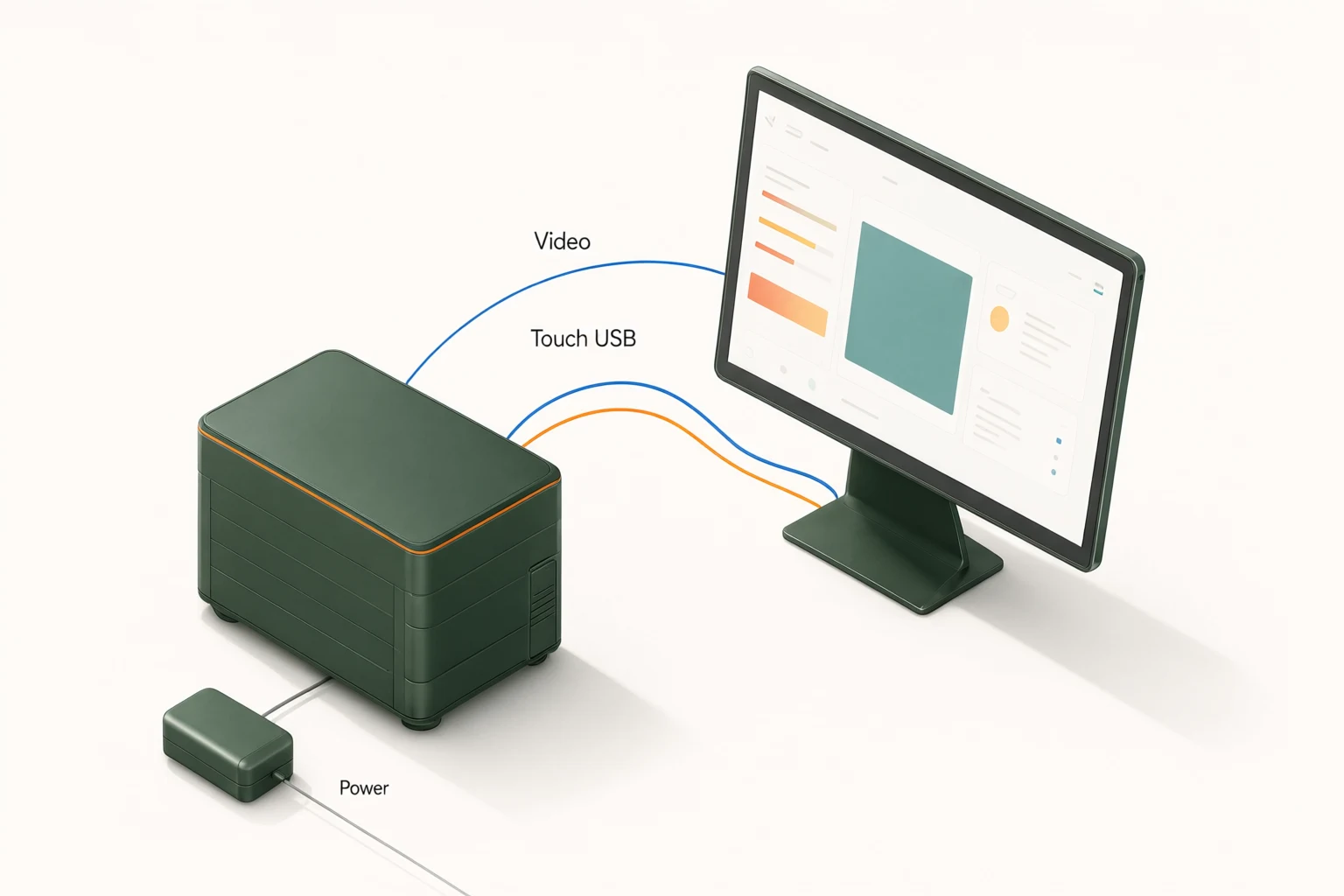
Separate the video path from the touch path
The published feature list includes HDMI, VGA, USB, audio input and output, and integrated speakers. Ask the supplier to identify the function of each connection on the proposed unit and provide a simple wiring diagram for your host. The cable that carries the picture and the connection used for touch reporting need to be understood as part of the system, rather than inferred from the connector names alone.
Check the host's available ports and any adapters you intend to use. If a hub or extension cable is part of the installation, include it in the sample test. The original product title also contains an LVDS reference, but that wording should not be treated as a complete description of an externally accessible interface. If your project needs direct panel or controller-board integration, request the relevant electrical documentation and connector information. Do not connect a custom board based only on a catalogue title.
Review the published panel configuration
The product description specifies a 1920 × 1080 LCD panel with a BOE A+ IPS screen. Confirm that the quotation and sample refer to that same panel configuration, especially where a custom project may offer alternatives. Inspect the actual application at its intended scale: fine labels, status colors and small symbols can matter more than the appearance of a demonstration photograph.
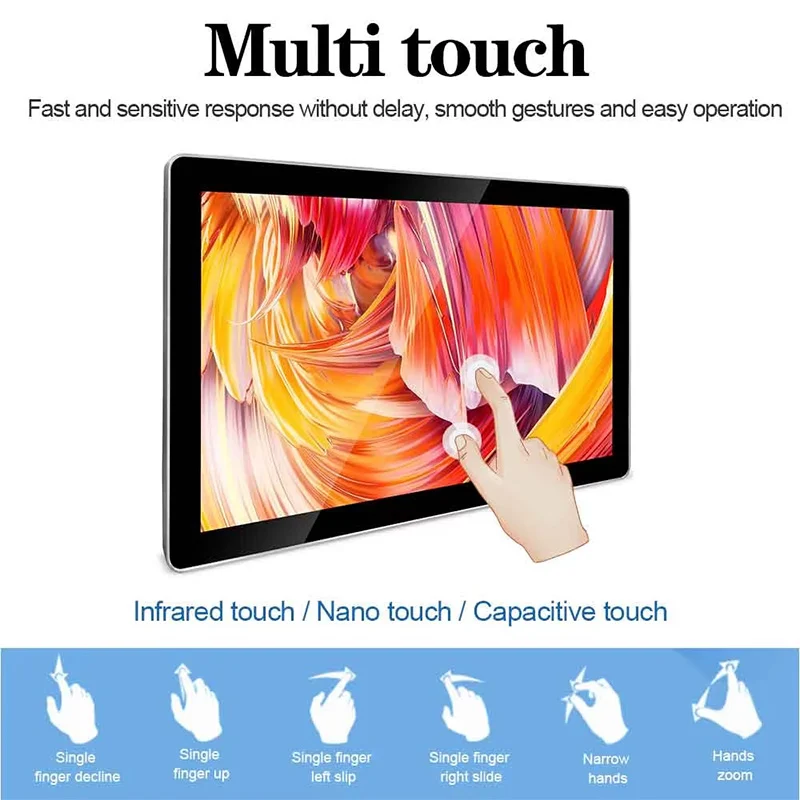
The source also lists ten-point capacitive touch and a response-time figure below 6 ms. Treat that figure as a published product parameter, not as measured end-to-end application latency. The host, software and complete input path influence what the user experiences. If responsiveness matters to your application, define an observable acceptance test using the real system. Ask separately about brightness, cover surface and any other panel characteristic your environment requires; those should not be invented from the size or IPS description.
Design a compact interface for practical touch use
A 15.6-inch display can fit a constrained workstation, but compact hardware does not excuse crowded software. Review the controls that operators use most often and keep them easy to distinguish. Place related actions together and make the current state clear. These are interface-design recommendations for the buyer's application, not functions built into the monitor itself.
Test the longest labels and the most complicated screen, not just the opening page. Ask users to complete ordinary tasks with the screen in its proposed position. Observe whether they can reach controls without awkward posture and whether their hand obscures information they need to read. If gloves, moisture or another unusual condition is expected, state it explicitly and request verification for the offered touch configuration. Capacitive touch alone does not prove suitability for every glove, contaminant or working environment.
Resolve enclosure and mounting details early
Alihh's feature description identifies a metal frame and VESA-compatible mounting. Request the actual mounting pattern, screw requirements, enclosure dimensions and weight before preparing a stand or cutout. VESA compatibility does not specify every mechanical detail needed by an installer. A diagonal measurement is also insufficient for designing a panel opening or a close-fitting bezel.
For an embedded terminal, send the proposed enclosure drawing and ask how the display can be secured and serviced. Check cable bend space, connector access and the route to the host. Do not allow a trim panel or fixing method to place unintended pressure on the touch surface. If the monitor will be positioned on a desk or arm, verify the selected support arrangement with the supplier and installer. Confirm environmental and ventilation requirements for the actual configuration rather than assuming that a compact metal enclosure carries an industrial protection rating.
Confirm operating-system behavior and touch mapping
The published compatibility statement covers Android, Windows and Linux, but the details of your host remain important. Provide the exact operating-system version, hardware platform and intended orientation. Ask whether drivers, configuration changes or calibration steps are required. Request the setup information that will be delivered with the product so your integration team can repeat the accepted configuration.
Test touch mapping after changing display orientation or using more than one monitor. Verify that touches affect the intended screen and that the application's controls respond correctly. Include restart and reconnect behavior in the evaluation if the terminal must recover without a technician. Those checks are especially useful when a hub, adapter or custom software image is involved. They are recommended project acceptance activities, not a claim that Alihh has tested every possible host combination or that all platforms behave identically.
Account for power, audio and service access
Ask for the power requirements and included supply for the quoted unit, then confirm how the display and host will be powered in the final assembly. Avoid leaving this decision until the enclosure has been manufactured. Keep the relevant supply, cable and connector information in the project record so installers do not have to infer it from a loose accessory bag.
Integrated speakers and audio connections are listed in the product features. Decide whether the application needs sound, and test the required path with the host and intended media. If audio is unnecessary, define the expected muted behavior in your system setup. Plan how a technician can disconnect or replace the monitor without disturbing unrelated equipment. Label the connections in the installation record and include the required cable lengths in the purchasing list. A compact installation is easier to maintain when its internal arrangement is deliberate.
Evaluate the complete terminal before a production order
A monitor sample should be tested with the intended host, application, cables and mounting arrangement. Check the displayed image, touch position across the working area and the application's response to the gestures it actually uses. A demonstration that recognizes several fingers is not enough to validate every control in your interface. Include ordinary operator tasks and any actions that are difficult to reverse.
Inspect the assembly for cable strain, blocked connectors and access problems. Perform controlled power and connection cycles to understand recovery behavior. Record the accepted hardware and software settings, and agree how any later configuration change will be communicated. These are suggested buyer checks rather than published factory results. If your application has formal safety, accessibility or regulatory requirements, have the responsible project team evaluate the complete system; a display component's published characteristics do not establish compliance of the finished terminal.
Freeze the cable set before enclosure production
A successful bench demonstration can become difficult to reproduce when different cables are used in the finished terminal. Record the cable types, lengths, adapters and connection order that were used with the accepted sample. Check the physical connector bodies as well as the electrical function; a large adapter can occupy space that was not visible in the enclosure drawing.
Use the proposed production cable set in the mechanical trial. Confirm that connectors can be inserted and removed without forcing the display or host, and that routine access does not require disturbing unrelated wiring. If a shorter or differently angled cable is later substituted, repeat the relevant checks. This is a practical integration control for the buyer, not a statement that every third-party cable will be supported by the monitor supplier.
Prepare an integration-focused factory enquiry
Send the host model, operating-system version, application description, quantity and delivery destination. Include the intended orientation, enclosure or stand drawing, cable requirements and any unusual operating condition. Name the interfaces you need and identify whether the display will be supplied as a finished monitor or considered for another integration arrangement. A clear drawing helps separate essential mechanical constraints from cosmetic preferences.
Alihh describes OEM and ODM capability, but requested changes should be reviewed for feasibility, quantity and approval requirements. Ask for an itemized quotation with the panel and controller configuration, power supply, cables, mounting accessories and support scope. The published support policy describes a two-year warranty and lifetime technical maintenance; confirm the terms for the order rather than treating maintenance as lifetime free replacement. You can send a touch monitor integration brief and request a sample configuration for your host and application.
Frequently asked questions
Is a computer built into this touch monitor?
This page describes a monitor for use with a suitable host. Do not assume that a computer, operating-system license or application is included. Identify the host that will run your software and confirm the required display, touch and power connections before ordering.
Can I use the monitor with a Linux system?
The source lists Linux along with Android and Windows compatibility. Provide the exact host and operating-system version and request setup information. Test touch mapping, application behavior and recovery using your actual configuration, including any hubs or adapters in the installation.
Does the LVDS wording identify an exposed connection?
The original title mentions LVDS, but a title is not a wiring specification. The feature list describes HDMI, VGA, USB and audio connections. If your project requires direct panel or controller access, ask for the specific electrical documentation and offered configuration.
Can the screen be fitted into a custom enclosure?
Discuss the enclosure drawing with the supplier before tooling. Confirm dimensions, mounting method, cable access and service clearance for the selected unit. OEM and ODM capability does not mean that every mechanical change is automatically feasible or included in the standard monitor price.