Choose the format around the interaction
An interactive screen should make the next action apparent. Before specifying the monitor, outline the main tasks: browsing information, selecting an option, confirming a choice or returning to the start. A larger interface canvas can support a different arrangement from a compact terminal, but it does not automatically produce a better experience. Review the number of decisions and the information needed at each step.
Use a working prototype of your application to assess the 21.5-inch format. Check whether the controls are easy to find and whether the user can read the important information while touching the screen. A public-facing installation may need a simpler interface than a staff workstation running the same underlying software. Compare the touch monitor formats with the application and mounting position together. The monitor supplies display and touch functions; the complete interaction depends on the host, application and physical installation.
Define the host system and connection package
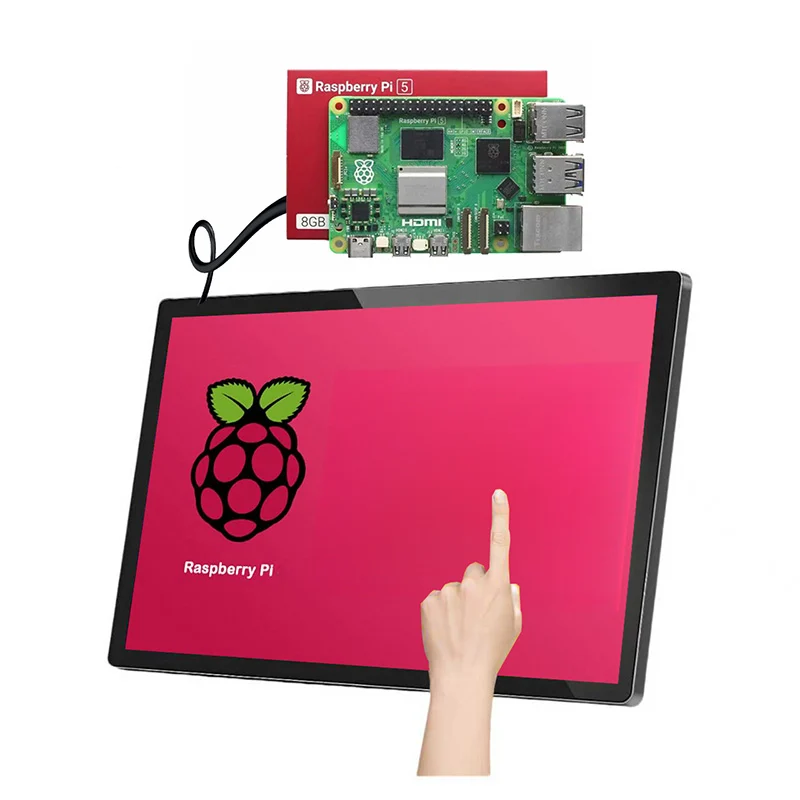
The product source states compatibility with Android, Windows and Linux operating systems and player boxes. Send the actual host model and software environment for review. The monitor should not be mistaken for an all-in-one computer: the application needs a suitable host, and the quotation should make clear which equipment is supplied by each party.
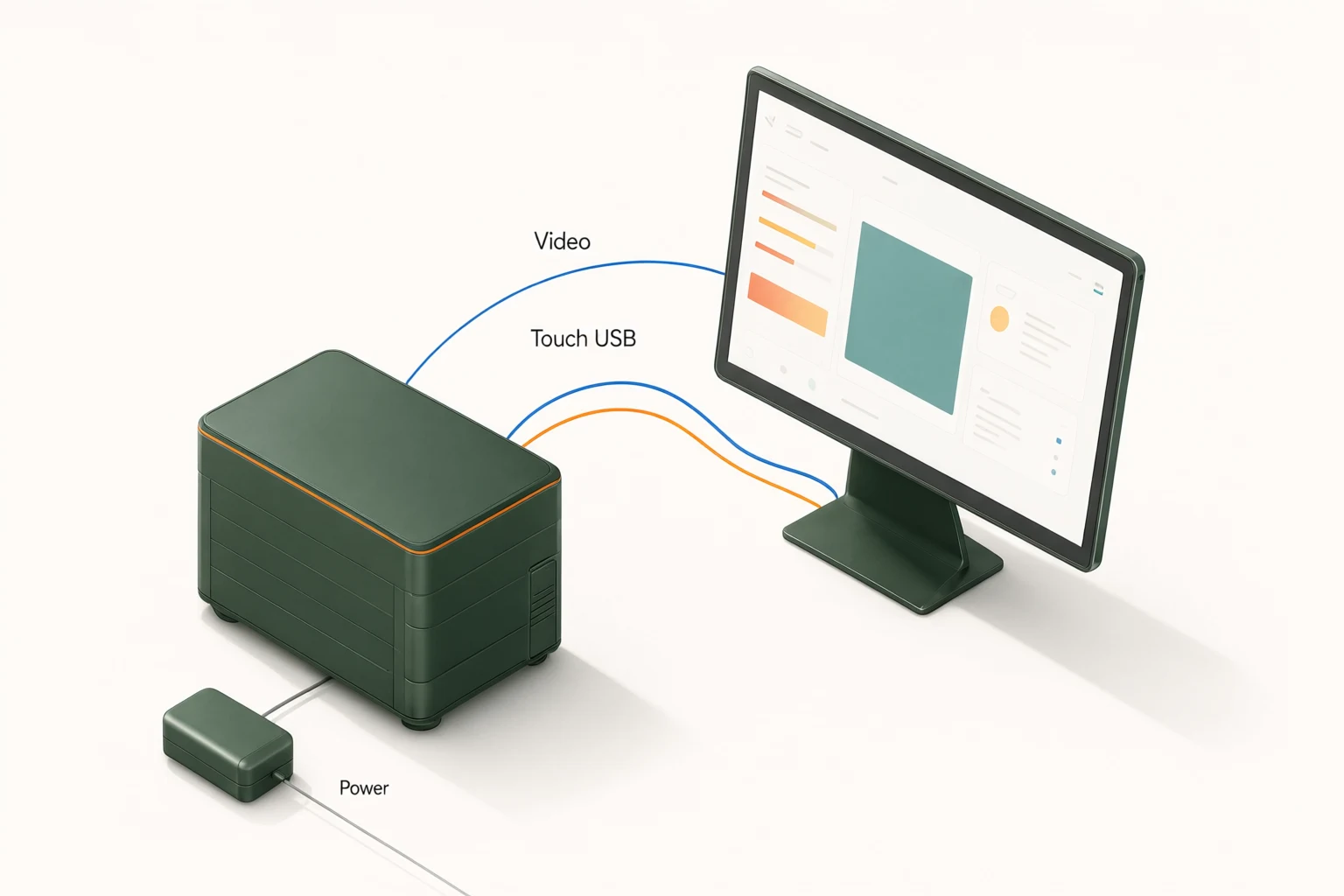
The feature section lists HDMI, VGA, USB, audio input and output, and built-in speakers. Ask for a connection diagram covering video, touch, audio and power. The original product title also contains DP wording, so confirm the actual port set on the proposed configuration rather than assuming every named interface is fitted. If your host requires DisplayPort, make that an explicit requirement and request written confirmation. Include any adapters, extensions or hubs in the evaluation because the complete signal path matters to the finished installation.
Use the panel specification as a starting point
Alihh describes a 1920 × 1080 BOE A+ IPS panel for this product. Confirm that configuration in the quotation and sample record. Review your application at the intended scale and orientation, especially fine text, icons, status indicators and any image detail that users rely on. A panel specification cannot determine whether the application's visual hierarchy is clear.
The source lists ten-point capacitive touch and a response time below 6 ms. That response figure is a published parameter, not a measurement of the complete time between a touch and an application response. If a project depends on a particular interaction speed, test it on the actual host and software. Ask for confirmation of brightness, surface treatment and other relevant characteristics rather than copying figures from another screen in the range. Product-family similarity is not evidence that every panel option has identical performance.
Make reach and viewing position part of the design
For a public terminal, consider the user approaching from either side and the posture required to reach the main controls. A screen mounted comfortably for one person may be awkward for another. Have the responsible design team review the intended users, counter height, screen angle and surrounding space. These are project design decisions, not an accessibility certification supplied by the monitor.
Test the interface with the monitor in its proposed physical position. Check whether a user's hand obscures confirmation messages or important instructions. Place destructive or irreversible actions where the application can communicate them clearly and request appropriate confirmation. If the terminal must be usable by a particular audience or comply with specific accessibility requirements, evaluate the complete installation against those requirements. A touch-point count and a display diagonal do not establish usability or compliance on their own.
Confirm mounting and enclosure interfaces
The product feature description includes a metal frame and VESA-compatible mounting. Request the mechanical drawing with dimensions, weight, mounting pattern, screw requirements and connector positions for the selected unit. Those details are necessary whether the screen is fitted to a wall, arm, stand or custom terminal. Do not assume that a generic mount is appropriate without checking the complete load and fixing arrangement.
For a kiosk enclosure, show how the monitor will be retained, how cables will reach the host and how a technician will remove the screen. Keep the touch surface free from unintended pressure caused by trim or clamping. Ask for the applicable ventilation and installation requirements before finalizing a close-fitting surround. If the display is intended for a demanding environment, request evidence for the relevant configuration; a metal housing should not be treated as proof of water resistance, impact resistance or an industrial protection rating.
Validate touch behavior with the final application
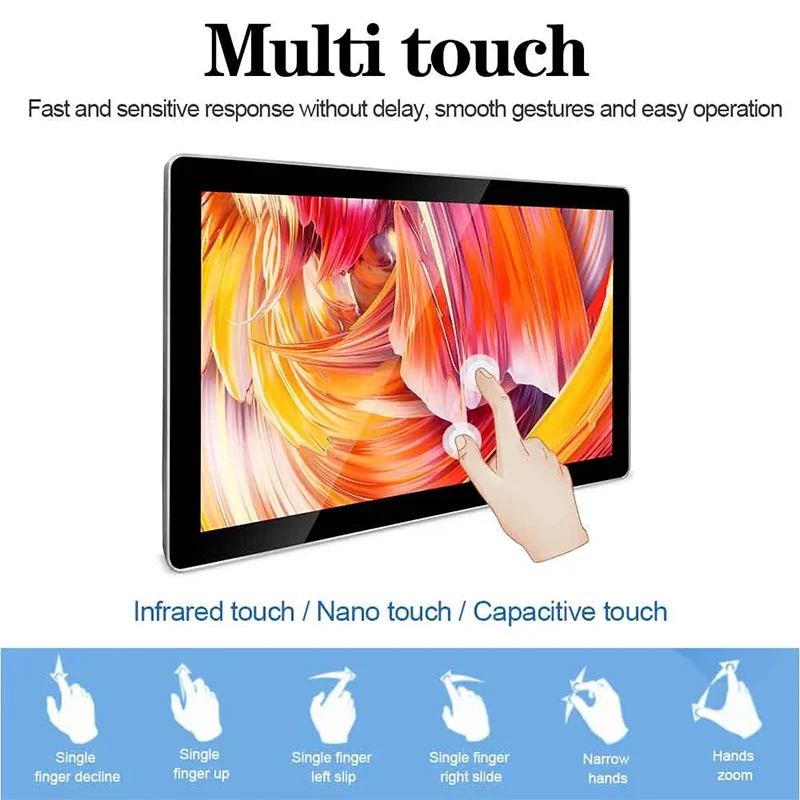
Start the software test with the tasks users perform most often. Check accurate selection across the working area, edge controls, scrolling and any multi-touch gesture your application needs. Ten-point touch support describes an input capability, but it does not mean every application implements every gesture. Confirm the expected behavior in your software rather than relying on a generic demonstration.
Test orientation changes and multi-display arrangements if they are part of the system. Verify that touches map to the correct screen after a restart or reconnection. Ask whether the host requires drivers or configuration steps, and keep those instructions with the accepted software image. If gloves or other unusual contact conditions are expected, specify them and request testing. These recommended checks help establish project compatibility without claiming that all host versions, applications or operating environments have already been validated.
Plan public operation, sound and recovery
An unattended terminal needs a defined application startup and recovery process. Ask your software team how the application returns to its initial state, handles interrupted tasks and prevents casual access to unrelated host settings. Those functions belong to the complete system and should not be attributed automatically to the touch monitor. Include them in the acceptance plan where they matter to your deployment.
The monitor's published feature list includes integrated speakers and audio connections. Decide whether sound is useful for the application and test it in the intended surroundings. A noisy public area and a quiet reception desk may need different treatment. For maintenance, document the route to power, the host and the display connections. Make the recovery instructions understandable to the person responsible on site, and distinguish an application problem from a display or connection issue before deciding what support process is needed.
Set acceptance criteria for production consistency
Build the sample test around the complete assembly. Verify the panel and controller configuration, the accessory list and the correspondence with approved drawings. Inspect the image with actual application screens and check touch behavior using the final host and cables. Confirm that the physical mounting arrangement leaves access for servicing and that the operator can use the terminal in the intended position.
Record the accepted software version, settings and test conditions. Agree how production units should correspond to that record and how any proposed configuration change will be handled. These are suggested procurement controls, not a statement of an existing Alihh production protocol. Ask which inspection evidence can be supplied for the order. Where model-specific compliance documents are required for your destination or application, request them for review rather than assuming that general company certification statements cover the complete finished terminal.
Define the handover between hardware and application teams
Public terminals are easier to support when the responsible teams agree where their work meets. Keep a connection diagram, the accepted monitor configuration and the host software version in the same project record. Identify who handles a missing picture, inaccurate touch mapping, an application error and a damaged mounting part. A general supplier warranty does not replace that operational arrangement.
During the pilot, ask the application team and installer to review the same terminal rather than separate bench setups. Confirm that their instructions describe the actual deployed system. Keep a short troubleshooting record of observable symptoms and approved recovery steps, without exposing administrator credentials on the terminal. This helps the site operator report a useful problem description and allows the appropriate team to investigate without immediately assuming that the monitor itself has failed.
Request a quote with clear integration boundaries
Provide the application purpose, intended users, host model, operating-system version, orientation and mounting drawing. Include screen quantity, delivery destination, port requirements and the expected cable arrangement. State any branding or enclosure changes separately from essential electrical and mechanical requirements. Alihh describes OEM and ODM services, so those requests can be assessed, but feasibility, quantities and approval steps need confirmation for the project.
Ask the quotation to identify the monitor configuration, supply and cables, mounting accessories and any additional integration work. Confirm the applicable support terms: the published policy describes a two-year warranty and lifetime technical maintenance, which does not mean lifetime free replacement. You can request a touch monitor factory quotation with your system brief. Before ordering, make sure the drawing, accepted sample, interface specification and commercial offer describe the same configuration so the integrator can proceed without guessing.
Frequently asked questions
Is DisplayPort included on every configuration?
The source title contains DP wording, while the detailed feature list names HDMI, VGA, USB and audio. Confirm the actual port set for the offered unit. If DisplayPort is essential, include it in the enquiry and require written confirmation before ordering.
Does ten-point touch guarantee application responsiveness?
It describes supported touch input, not the response of your complete software system. The source also publishes a response-time figure, but host hardware, software and connections affect the user experience. Test the actual application and define the behavior required for acceptance.
Can this monitor become a public self-service terminal?
It can be evaluated as the display and touch component of a terminal. The complete project also needs a suitable host, application, enclosure and operating process. Review usability, access restrictions, recovery and any applicable compliance requirements at the system level.
What should an integrator provide before sampling?
Send the host and operating-system details, application description, required ports, mounting drawing and intended orientation. Include cable arrangements and unusual operating conditions. Agree the sample configuration and the checks you will use so both parties understand what successful integration means.